

Problem 1: My Wi-Fi Is Slow Even Though I Have a Good Plan
This is the most common complaint we hear. And nine times out of ten, the fix has nothing to do with Syscodes’ network it’s about how the devices in the home are using the connection. Start by checking how many devices are connected to your Wi-Fi at once. Smart TVs, phones, laptops, tablets, smart speakers, game consoles they all share your bandwidth. If fifteen devices are connected and five of them are streaming or downloading in the background, even a 50 Mbps connection will feel slow to the device you’re actually using. Disconnect devices you’re not actively using, and you’ll notice an immediate improvement.
Problem 2: Wi-Fi Works in One Room but Cuts Out in Another
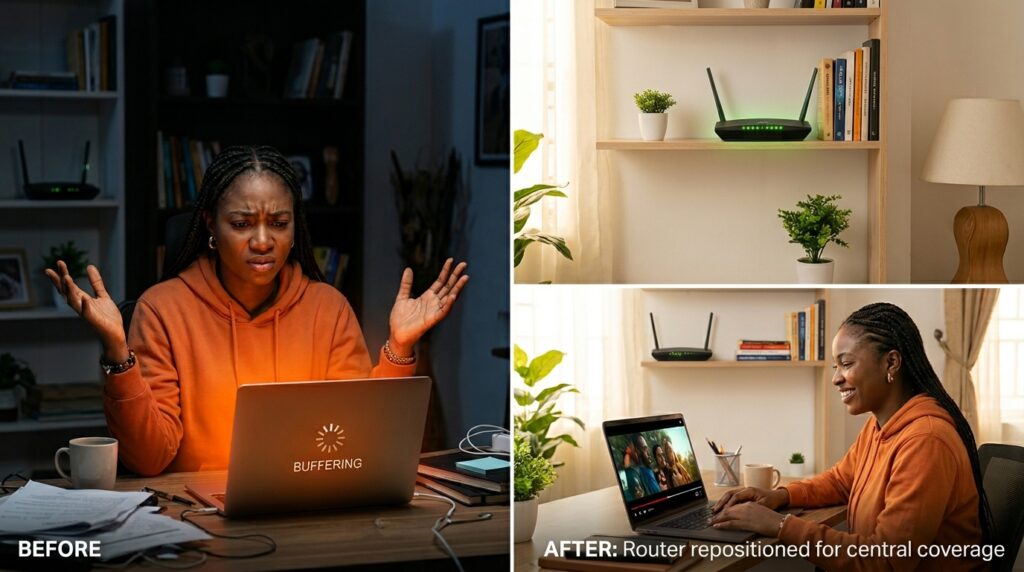
This is a coverage problem, not a speed problem. Wi-Fi signals weaken as they pass through walls especially thick concrete walls, which are very common in Nigerian homes and apartments. A single router simply cannot cover a large duplex or a multi-floor building adequately. The solution is either a Wi-Fi extender (a small plug-in device that repeats the signal further into your home) or a mesh Wi-Fi system, which uses multiple units placed around your home to create seamless coverage everywhere. Contact us and we can advise which option suits your home layout
Problem 3: My Internet Is Fast on One Device but Slow on Another
This usually means the slow device has a problem, not your internet connection. Try these steps on the slow device: restart it completely (not just screen-off), forget the Wi-Fi network and reconnect, check if the device has pending software updates (outdated software can dramatically affect network performance), and clear your browser cache if the slowness is only on web browsing. If the issue persists on only one device, it is almost certainly a device issue rather than a network issue.
Problem 4: My Connection Drops Randomly Throughout the Day
Random disconnections can be caused by several things: an overheating router (make sure it’s in an open, ventilated space not inside a cabinet), a loose cable connection at the back of the router, or interference from nearby electronics. Check all your cable connections first gently push each one in firmly. If the router feels hot to the touch, move it somewhere with better airflow. If random drops persist after these steps, contact our support team so we can check the line quality from our end.
Problem 5: The Internet Works Fine But Video Calls Are Still Terrible
Video calls are uniquely demanding because they require both good download AND good upload speed simultaneously. They also require low latency meaning data needs to travel back and forth quickly. If your video calls suffer but regular browsing is fine, try this: close every other app and browser tab on your device during the call, ask other household members to pause streaming or downloads during the call, and if possible, connect your laptop directly to the router via a LAN cable instead of using Wi-Fi. All of these steps can make a dramatic difference to call quality.